Editing
TableView supports in-place cell editing. Double-tapping a cell, or pressing F2 when a cell has focus, enters edit mode. The column provides the editing control. Pressing Enter or tabbing out commits the change; pressing Escape cancels it.
When to use it
Use editing when users need to modify data values directly in the table, without opening a separate form or dialog.
Basic example
Editing is enabled by default. No extra configuration is required:
<tv:TableView ItemsSource="{x:Bind Products}" AutoGenerateColumns="False">
    <tv:TableView.Columns>
        <tv:TableViewTextColumn   Header="Name"  Binding="{Binding Name}" />
        <tv:TableViewNumberColumn Header="Price" Binding="{Binding Price}" />
    </tv:TableView.Columns>
</tv:TableView>
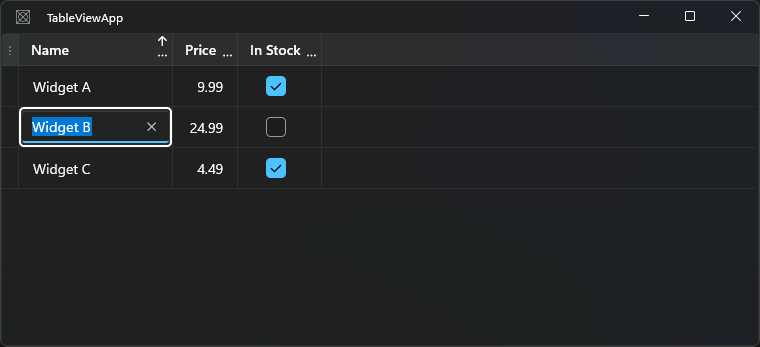
Double-tap any cell to edit it.
Making the table read-only
Make the entire table read-only:
<tv:TableView IsReadOnly="True" />
Make a single column read-only:
<tv:TableViewTextColumn Header="ID" Binding="{Binding Id}" IsReadOnly="True" />
Editing lifecycle
The editing lifecycle fires four events in order:
BeginningEdit → PreparingCellForEdit → [user edits] → CellEditEnding → CellEditEnded
BeginningEdit
Fires before a cell enters edit mode. Setting e.Cancel = true prevents editing:
tableView.BeginningEdit += (s, e) =>
{
    // Block editing of locked rows
    if (e.DataItem is Product p && p.IsLocked)
    {
        e.Cancel = true;
    }
};
TableViewBeginningEditEventArgs properties:
| Property | Description |
|---|---|
Cell |
The cell entering edit mode |
DataItem |
The data object for the row |
Column |
The column containing the cell |
EditingArgs |
The original input event (double-tap, F2, etc.) |
Cancel |
Set true to block editing |
PreparingCellForEdit
Fires after the editing element has been created and placed in the cell. Use this to set focus, select text, or pre-populate the editing control:
tableView.PreparingCellForEdit += (s, e) =>
{
    // Select all text in the TextBox when editing starts
    if (e.EditingElement is TextBox tb)
    {
        tb.SelectAll();
    }
};
TableViewPreparingCellForEditEventArgs properties:
| Property | Description |
|---|---|
Cell |
The cell in edit mode |
DataItem |
The data object for the row |
Column |
The column containing the cell |
EditingElement |
The editing control that was created |
CellEditEnding
Fires just before the edit is committed or cancelled. Setting e.Cancel = true keeps the cell in edit mode:
tableView.CellEditEnding += (s, e) =>
{
    if (e.EditAction == TableViewEditAction.Commit)
    {
        // Validate: price must be positive
        if (e.Column.Header?.ToString() == "Price" &&
            e.EditingElement is NumberBox nb &&
            nb.Value <= 0)
        {
            e.Cancel = true; // Stay in edit mode
        }
    }
};
TableViewCellEditEndingEventArgs properties:
| Property | Description |
|---|---|
Cell |
The cell in edit mode |
DataItem |
The data object for the row |
Column |
The column containing the cell |
EditingElement |
The editing control |
EditAction |
Commit or Cancel |
Cancel |
Set true to stay in edit mode |
CellEditEnded
Fires after the edit is committed or cancelled. The data item has already been updated (on commit) or restored (on cancel):
tableView.CellEditEnded += (s, e) =>
{
    if (e.EditAction == TableViewEditAction.Commit)
    {
        Console.WriteLine($"Cell committed: column={e.Column.Header}, item={e.DataItem}");
    }
};
TableViewCellEditEndedEventArgs properties are the same as CellEditEndingEventArgs (without Cancel).
TableViewEditAction
| Value | Description |
|---|---|
Commit |
The user confirmed the edit (Enter, Tab, or clicking away) |
Cancel |
The user cancelled (Escape) |
IsReadOnlyChanged event
TableView raises IsReadOnlyChanged when the IsReadOnly property changes:
tableView.IsReadOnlyChanged += (s, e) =>
{
    bool isNowReadOnly = (bool)e.NewValue;
};
Double-tap events
RowDoubleTapped and CellDoubleTapped fire when a row or cell is double-tapped, before editing begins. You can use these to take custom action (such as opening a details dialog) instead of entering edit mode:
tableView.CellDoubleTapped += (s, e) =>
{
    Console.WriteLine($"Double-tapped row {e.Row}, column {e.Column}");
};
Notes and limitations
TableViewCheckBoxColumnandTableViewToggleSwitchColumnuseUseSingleElement = true. The checkbox or toggle responds to clicks directly and commits the value without a separate edit mode.- The
Bindingon bound columns is automatically set toTwoWaywithUpdateSourceTrigger = Explicit. Changes are written back to the source only whenCellEditEndingruns withCommit. - Pressing Tab commits the current cell and moves to the next editable cell.