Selection
TableView supports selecting individual cells, whole rows, or a combination of both. You control the selection behavior through SelectionMode and SelectionUnit.
When to use it
- Use row selection for list-style UIs where you act on entire records.
- Use cell selection for spreadsheet-style UIs where you need to reference or copy individual values.
- Use combined modes for data grids where users can do both.
SelectionMode
SelectionMode inherits from ListViewSelectionMode and controls how many rows (or cells) can be selected at once:
| Value | Description |
|---|---|
None |
Selection is disabled |
Single |
Only one row/cell can be selected at a time |
Multiple |
Multiple items can be selected individually |
Extended (default) |
Click to select; Shift+Click to range-select; Ctrl+Click to toggle |
<tv:TableView SelectionMode="Single" />
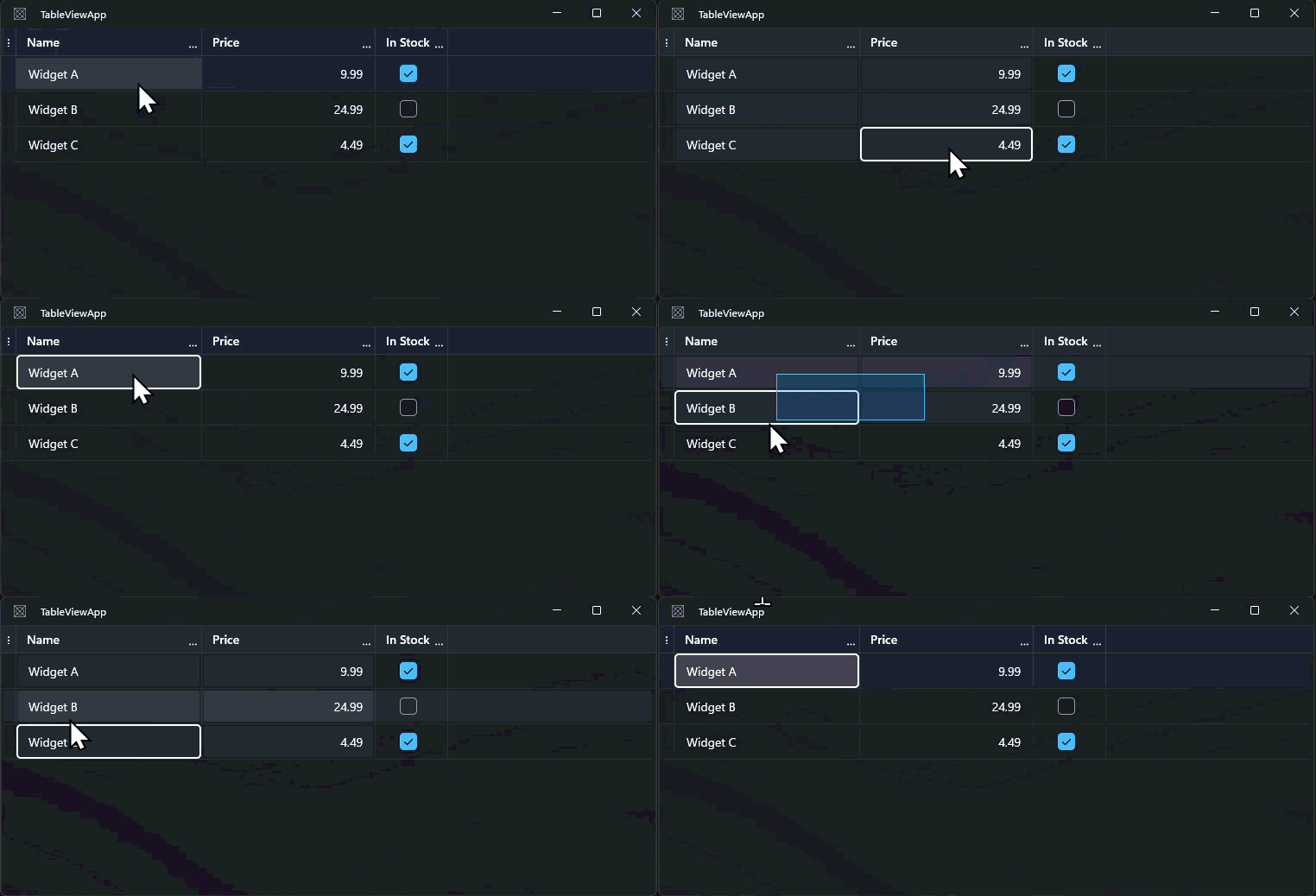
SelectionUnit
SelectionUnit determines what the user can select:
| Value | Description |
|---|---|
CellOrRow (default) |
Clicking a cell selects that cell; clicking a row header selects the row. Cell selection and row selection are independent. |
CellWithRow |
Clicking a cell selects the cell and also selects the owning row. |
Cell |
Only cells can be selected; row headers do not select rows. |
Row |
Only rows can be selected; clicking a cell selects the row. |
<tv:TableView SelectionUnit="Row" SelectionMode="Single" />
Reading selected items
For row selection, use the standard ListView properties:
// Single selected item
var item = tableView.SelectedItem as Product;

// Multiple selected items
foreach (var item in tableView.SelectedItems.OfType<Product>())
{
    // ...
}
For cell selection, use SelectedCells or listen to CellSelectionChanged:
tableView.CellSelectionChanged += (s, e) =>
{
    foreach (var slot in e.AddedCells)
    {
        int row = slot.Row;
        int col = slot.Column;
        Console.WriteLine($"Selected cell ({row}, {col})");
    }

    foreach (var slot in e.RemovedCells)
    {
        Console.WriteLine($"Deselected cell ({row}, {col})");
    }
};
TableViewCellSlot
A TableViewCellSlot is a lightweight record struct that identifies a cell by its row and column indices:
public readonly record struct TableViewCellSlot(int Row, int Column);
// Navigate to a specific cell
tableView.CurrentCellSlot = new TableViewCellSlot(2, 1);
CurrentCellSlot
CurrentCellSlot is a nullable dependency property that identifies the currently focused cell:
var current = tableView.CurrentCellSlot;
if (current.HasValue)
{
    Console.WriteLine($"Current cell: row {current.Value.Row}, column {current.Value.Column}");
}
Handle CurrentCellChanged to react when focus moves to a different cell:
tableView.CurrentCellChanged += (s, e) =>
{
    var slot = tableView.CurrentCellSlot;
};
Corner button
The corner button appears in the top-left cell above the row headers. Its behavior is controlled by the CornerButtonMode property.
<tv:TableView CornerButtonMode="Options" />
CornerButtonMode values
| Value | Description |
|---|---|
None |
No corner button is shown |
SelectAll |
Shows a Select All checkbox/button that selects all rows |
Options (default) |
Shows a table-level options menu (flyout) |
Options flyout
When CornerButtonMode is Options (the default), clicking the corner button opens a flyout menu with the following commands:
| Menu item | Description |
|---|---|
| Select All | Selects all rows |
| Deselect All | Clears all selections |
| Copy | Copies selected rows/cells to clipboard (Ctrl+C) |
| Copy with Headers | Copies selection with column headers (Ctrl+Shift+C) |
| Paste | Pastes clipboard content into the table (Ctrl+V) |
| Clear Sorting | Removes all active sort descriptions |
| Clear Filter | Removes all active column filters |
| Export All to CSV | Exports all rows to a CSV file |
| Export Selected to CSV | Exports only the selected rows to a CSV file |
Items are automatically disabled when not applicable — for example, Paste is hidden when CanPaste is false, and the Export items are only visible when ShowExportOptions is true.
<!-- Disable the corner button entirely -->
<tv:TableView CornerButtonMode="None" />

<!-- Show only a Select All button (no flyout) -->
<tv:TableView CornerButtonMode="SelectAll" />

<!-- Show the full Options flyout (default) -->
<tv:TableView CornerButtonMode="Options" />
ForceRowOrCellSelectionOnContextRequested
When showing a context menu, you may want to ensure the right-clicked row or cell becomes selected. Set this property to true:
<tv:TableView ForceRowOrCellSelectionOnContextRequested="True" />
Cell selection changed event
tableView.CellSelectionChanged += (s, e) =>
{
    // e.AddedCells: newly selected cells
    // e.RemovedCells: newly deselected cells
};
Notes and limitations
- When
SelectionUnitisRow, theSelectedCellscollection andCellSelectionChangedare not used. - Drag selection is supported for cell selection. The selection rectangle is shown by default; disable it with
ShowDragRectangle = false. - In
CellOrRowmode, row and cell selections are tracked independently. A selected row does not mean its cells are inSelectedCells.