Filtering
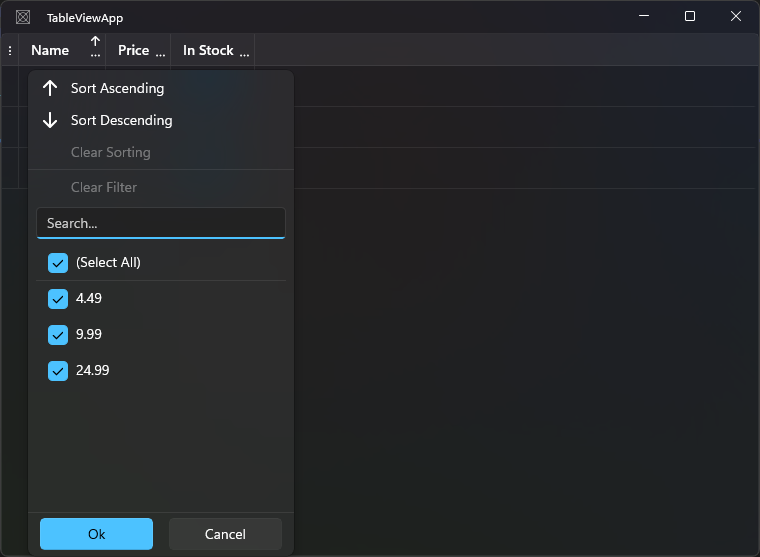
TableView provides an Excel-like column filter flyout that lets users select which values to show in each column. Filtering is built in and requires no extra code for the standard case.
When to use it
Use filtering when users need to narrow down a large list to items that match specific values in one or more columns. For example, filtering a product list to show only items that are "In Stock", or filtering an order list to a specific customer.
Basic example
Filtering is on by default. Click the options button in a column header to open the filter flyout:
<tv:TableView ItemsSource="{x:Bind Products}" />
Opening the filter flyout
By default, the column filter flyout opens from the options button in the column header. You can optionally open it with a right-click:
<tv:TableView UseRightClickForColumnFilter="True" />
Disabling filtering
Disable filtering for the entire table:
<tv:TableView CanFilterColumns="False" />
Disable filtering for a specific column:
<tv:TableViewTextColumn Header="ID" Binding="{Binding Id}" CanFilter="False" />
Showing item counts in the filter flyout
Show how many rows match each filter value:
<tv:TableView ShowFilterItemsCount="True" />
Filtering programmatically
Add filter descriptions to TableView.FilterDescriptions:
// Show only in-stock items
tableView.FilterDescriptions.Add(
    new FilterDescription("InStock", new PredicateFilter(v => v is true)));

// Clear all filters
tableView.ClearAllFilters();
Clearing and refreshing filters programmatically
Use ClearAllFilters() to remove all active filter descriptions and reset every column's filter state in one call:
tableView.ClearAllFilters();
Use RefreshFilter() to re-evaluate the current filter against the data without user interaction. Call this after modifying source data in-place so the view reflects the latest values:
// Re-run the current filter after data changed in-place
tableView.RefreshFilter();
Custom filter handler
The FilterHandler property accepts an IColumnFilterHandler implementation. This allows you to replace the built-in filter logic entirely:
public class MyFilterHandler : IColumnFilterHandler
{
    // Implement IColumnFilterHandler members
}

tableView.FilterHandler = new MyFilterHandler();
Checking filter state
bool isFiltered = tableView.IsFiltered;
// true if any FilterDescription is active OR any column reports IsFiltered = true
Common options
| Property | Description |
|---|---|
CanFilterColumns |
Enables or disables filtering for all columns (default true) |
CanFilter |
Per-column filter toggle |
IsFiltered |
true if a filter is active on this column |
FilterDescriptions |
The collection of active filter descriptions |
IsFiltered |
true if any filter is applied to the view |
ClearAllFilters() |
Removes all filter descriptions and resets column filter state |
RefreshFilter() |
Re-evaluates current filter descriptions without user interaction |
ShowFilterItemsCount |
Shows the count of matching rows next to each filter value |
UseRightClickForColumnFilter |
Opens the filter flyout on column header right-click |
FilterHandler |
Custom filter handler implementation |
Notes and limitations
- Filtering is applied to the internal collection view. It does not mutate the original collection.
TableViewTemplateColumnhasCanFilter = falseby default. SetOperationContentBindingto enable filtering on template columns.- When a filter is active, new items added to the source collection may not appear in the view until the filter is re-evaluated or live shaping is enabled (
AllowLiveShaping = true).