Sorting
TableView has built-in column sorting. Clicking a column header cycles the sort direction for that column: ascending → descending → cleared.
When to use it
Use sorting whenever users need to find the highest or lowest value in a column, or locate items alphabetically. Sorting is enabled by default and requires no extra code for the standard use case.
Basic example
Sorting is on by default. No extra configuration is needed:
<tv:TableView ItemsSource="{x:Bind Products}" />
Clicking the Price column header sorts the rows by price.
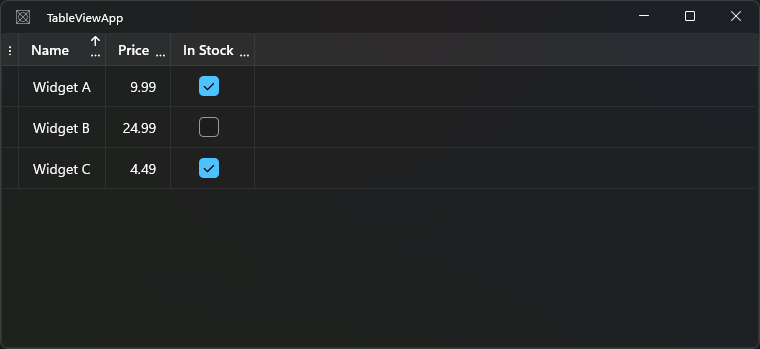
Disabling sorting
Disable sorting for the entire table:
<tv:TableView CanSortColumns="False" />
Disable sorting for a specific column:
<tv:TableViewNumberColumn Header="Price" Binding="{Binding Price}" CanSort="False" />
Showing a hint icon for sortable columns
By default, an unsorted column shows no indicator, even if it's sortable — there's no way to tell a column supports sorting until you click it. Set ShowSortableColumnIcon to True to show a subtle icon on sortable columns that aren't currently sorted, hinting that clicking the header will sort them:
<tv:TableView ShowSortableColumnIcon="True" />
The hint icon only appears where sorting is actually possible — it respects both CanSortColumns and the column's own CanSort. It disappears once the column is sorted, replaced by the usual ascending/descending indicator. ShowSortableColumnIcon is False by default, so existing apps see no visual change unless they opt in.
Sorting by a different property (SortMemberPath)
By default, clicking a column header sorts by the column's bound property path. Use SortMemberPath to sort by a different property than the one displayed in the cell.
This is essential when:
- The displayed value is a formatted string or computed property, but you want to sort by the raw underlying value.
- You have a
TableViewTemplateColumnwith noBinding, but you still want sort to work on a specific property.
<!-- Display a formatted status string, but sort by the numeric StatusCode -->
<tv:TableViewTextColumn Header="Status"
                        Binding="{Binding StatusLabel}"
                        SortMemberPath="StatusCode" />
<!-- Template column with no Binding — sort by the Name property -->
<tv:TableViewTemplateColumn Header="Employee"
                             SortMemberPath="Name"
                             CanSort="True">
    <tv:TableViewTemplateColumn.CellTemplate>
        <DataTemplate>
            <StackPanel Orientation="Horizontal" Spacing="8">
                <Image Source="{Binding AvatarUrl}" Width="24" Height="24" />
                <TextBlock Text="{Binding Name}" />
            </StackPanel>
        </DataTemplate>
    </tv:TableViewTemplateColumn.CellTemplate>
</tv:TableViewTemplateColumn>
When SortMemberPath is set, sorting uses reflection on the named property. When it is not set, the column falls back to the bound property path (for bound columns) or the cell's displayed content (for template columns).
Sorting programmatically
Add sort descriptions to TableView.SortDescriptions:
// Sort by price ascending
tableView.SortDescriptions.Add(new SortDescription("Price", SortDirection.Ascending));

// Sort by name then price
tableView.SortDescriptions.Clear();
tableView.SortDescriptions.Add(new SortDescription("Name", SortDirection.Ascending));
tableView.SortDescriptions.Add(new SortDescription("Price", SortDirection.Ascending));
The SortDescriptions collection is backed by the internal collection view. Changes take effect immediately.
Clear all sorting using the dedicated method:
tableView.ClearAllSorting();
Refreshing the sort
Call RefreshSorting() to re-apply the current sort descriptions without requiring any user interaction. This is useful after you modify the underlying data outside of an ObservableCollection and need the displayed order to reflect the current values:
// Re-evaluate the sort after updating data in place
tableView.RefreshSorting();
The Sorting event
Handle the Sorting event to replace or supplement the built-in sort logic. Setting e.Handled = true prevents the default sort from running:
tableView.Sorting += (s, e) =>
{
    // Custom sort: case-insensitive name sort
    if (e.Column.Header?.ToString() == "Name")
    {
        var direction = e.Column.SortDirection == SortDirection.Ascending
            ? SortDirection.Descending
            : SortDirection.Ascending;

        tableView.ClearAllSorting();
        tableView.SortDescriptions.Add(new SortDescription(
            "Name",
            direction,
            StringComparer.OrdinalIgnoreCase));

        e.Column.SortDirection = direction;
        e.Handled = true;
    }
};
TableViewSortingEventArgs properties:
| Property | Description |
|---|---|
Column |
The column being sorted |
Handled |
Set true to suppress default sort behavior |
The ClearSorting event
ClearSorting fires when the sort is removed from a column (third click cycles back to no sort):
tableView.ClearSorting += (s, e) =>
{
    Console.WriteLine($"Sort cleared on column: {e.Column.Header}");
};
TableViewClearSortingEventArgs properties:
| Property | Description |
|---|---|
Column |
The column whose sort was cleared |
Multi-column sort
Ctrl+Click a column header to add it as a secondary sort. The sort indicators show numbers when multiple columns are sorted.
Sorting and grouping
Grouping a column also drives its order, so a grouped column shows a sort indicator too. If the column already had its own sort applied before being grouped, that keeps three-state cycling as usual until it's eventually cleared; from that point on (or immediately, if it had no prior sort) the column toggles ascending/descending only, since a group's order always needs a direction. See Grouping.
Checking sort state
bool isSorted = tableView.IsSorted; // true if any column has a sort direction
var descriptions = tableView.SortDescriptions; // the active SortDescription list
Common options
| Property / Event | Description |
|---|---|
CanSortColumns |
Enables or disables sorting for all columns |
CanSort |
Per-column sort toggle |
ShowSortableColumnIcon |
Shows a hint icon on sortable, unsorted columns. False by default |
SortMemberPath |
Property path used for sorting, overriding the display binding |
SortDirection |
Current sort direction (Ascending, Descending, or null) |
SortDescriptions |
Collection of active sort descriptions |
IsSorted |
true if any sort is applied |
ClearAllSorting() |
Removes all sort descriptions and resets column indicators |
RefreshSorting() |
Re-applies current sort descriptions without user interaction |
Sorting |
Fires before the default sort runs; can be cancelled |
ClearSorting |
Fires when a column's sort is cleared |
Notes and limitations
TableViewTemplateColumnhasCanSort = falseby default because there is no bound property path. SetSortMemberPath(andCanSort="True") to enable sorting on template columns, or setOperationContentBindingas an alternative.- Sorting is applied to the internal collection view. It does not mutate the original collection.